A question for anyone managing an Entra tenant: what can a regular, non-admin user actually see in your directory?
More than you'd think.
There's a toggle in Entra under Users → User settings called Restrict access to Microsoft Entra admin center. A lot of people treat it as the control that keeps standard users out of the directory. It isn't - and Microsoft says so in its own documentation.
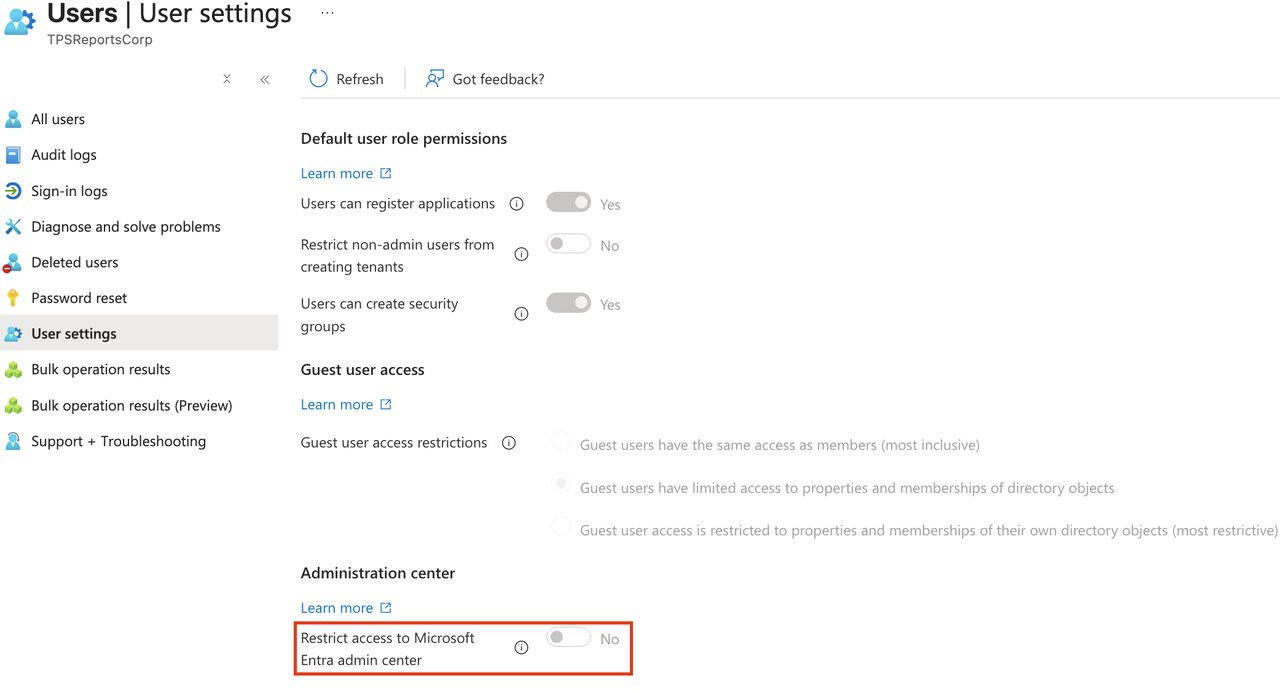
What a Standard User Can Read by Default
Out of the box, every member user in an Entra tenant can read almost the entire directory. According to Microsoft's default user permissions, a standard user can:
- Enumerate all users and read their public properties
- Enumerate all groups, their properties, and their (non-hidden) membership
- Read all administrative roles and who holds them
- Enumerate all devices and their properties
- Enumerate all applications, enterprise apps, and the permissions granted to them
- Read policies, company information, and every domain in the tenant
That's by design - Teams, Outlook and the people picker all depend on users being able to look each other up. The problem is that "can look up a colleague" and "can export a map of your identity infrastructure" are the same permission.
What the Toggle Actually Does
Left at "No" (the default), any standard user can sign in to the Entra admin center and browse. Users, groups, memberships, role assignments, devices, applications. No special access, no alert - just a normal employee clicking around your identity infrastructure.
Switched to "Yes", non-admins are blocked from a set of commonly visited admin center pages - home, tenant overview, the users list. That's it. Per Microsoft's documentation, it:
- Doesn't block programmatic access to the same data through PowerShell, the Microsoft Graph API, Graph Explorer, or other tools.
- Doesn't apply to anyone holding an administrative role - including custom roles.
- Doesn't block the whole admin center. Most pages are still reachable with a direct link.
Microsoft's words, not mine: the setting "is not a security measure." It adds friction to casual browsing. Microsoft's own recommendation for actually restricting access is Conditional Access.
Why This Matters
So whichever way the toggle is set, a standard account can still enumerate your entire directory.
That changes what a single phished, low-privilege account is worth. Before escalating anything, an attacker can pull a complete map of your tenant: who your Global Admins are, which groups grant which roles, which service principals hold dangerous permissions, which accounts are synced from on-prem. Collection tools do this in minutes, using nothing but the victim's normal permissions. By the time they make a noisy move, they already know exactly where to go.
What Actually Closes It
There's no single switch that makes the directory invisible without breaking Microsoft 365. What you can do is close the easy, high-value paths - the admin portals and the first-party tools people use to query the directory - and watch the rest.
1. Conditional Access on the Windows Azure Service Management API
This is the control Microsoft points to. The Windows Azure Service Management API target covers Azure Resource Manager and the Azure portal - which includes the Entra admin center - so blocking non-admins here closes the portal properly, not just its home page. It also blocks Azure CLI and Azure PowerShell for those users.
It's easy to get this wrong. The Microsoft Admin Portals target covers the portal front ends only, not the management APIs behind them - so a block on Admin Portals still leaves Azure Resource Manager, Azure CLI and Azure PowerShell open. If you want the management surface closed, target the Service Management API.
Before enforcing, check who legitimately uses Azure without holding an Entra role - developers and engineers with Azure RBAC on subscriptions are the usual ones. Put them in a group and exclude it.
2. Require Assignment on Graph Explorer and the Graph Command Line Tools
The Service Management API doesn't cover Microsoft Graph PowerShell or Graph Explorer - they call Microsoft Graph, not Azure Resource Manager. And Conditional Access can't target Microsoft Graph directly; Microsoft excludes it because it's an umbrella resource almost every app depends on.
The fix is on the client side: set Assignment required to Yes on the service principals for Graph Explorer and Microsoft Graph Command Line Tools, and assign only the people who need them. Everyone else can't sign in to those tools at all.
Order matters here. Assign your admins before you require assignment, or you'll lock yourself out of the very tool you're using:
Assigning a group requires Entra ID P1 or higher; on lower licensing, assign users individually. Include your break-glass accounts.
3. Close the "Bring Your Own App" Path
Look at the screenshot again: Users can register applications is set to Yes. That's the default, and it means any user can create an app registration - one more way to get a token that can read the directory. Combine it with permissive user consent and a user (or an attacker using their account) can approve third-party apps that read directory data too.
- Set Users can register applications to No, and give the Application Developer role to the people who genuinely need it.
- Restrict user consent to verified publishers and low-risk permissions - or require admin consent for everything - and turn on the admin consent workflow so requests have somewhere to go.
A Note on the "Read Other Users" Switch
There is a tenant setting that stops non-admins reading other users' information: AllowedToReadOtherUsers in the authorization policy, available only through Graph or PowerShell. Microsoft explicitly doesn't recommend it - it's meant for special circumstances and can break services like Teams. Don't reach for it as the general fix.
Detect What You Can't Block
Even with the controls in place, you want to know who's using directory tooling. Non-admins signing in to Graph Explorer, the Graph Command Line Tools, Azure CLI or Azure PowerShell are worth a look - especially from a user who has never done it before:
Compare the result against your list of admins and engineers. Anyone else on it should have a reason.
Two Rules Before You Touch Anything
- Report-only first. Run the Conditional Access policy in report-only mode for a week and review what it would have blocked before you enforce it.
- Exclude your break-glass accounts from every policy, and make sure they're assigned to anything that requires assignment. Locking yourself out of your own tenant makes for a long day. (More on break-glass accounts in my Conditional Access post.)
The Bottom Line
The toggle prevents accidents and casual snooping. Conditional Access and app assignment prevent attackers - or at least make them work for the map instead of having it handed over. Know which problem you're actually solving.
Microsoft's documentation: Default user permissions - Restrict member users' default permissions and Conditional Access target resources - Windows Azure Service Management API.
This post expands on my LinkedIn post on the same topic - join the discussion there.